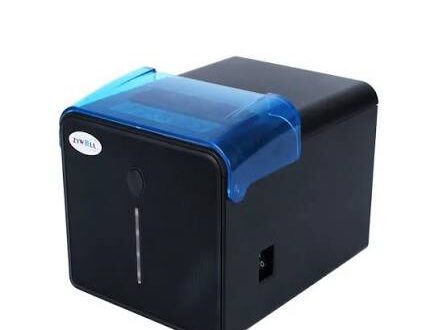
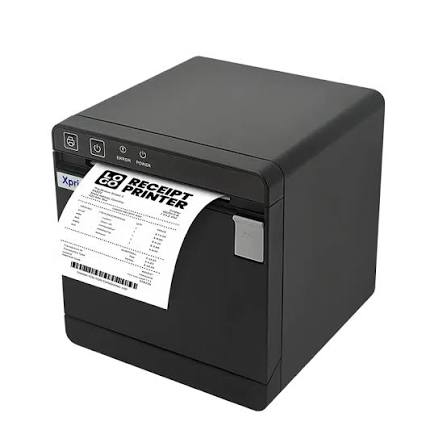
Receipt printers are essential components of modern point-of-sale systems, helping businesses produce customer bills, payment confirmations, and transaction records. They are commonly used in retail stores, restaurants, supermarkets, pharmacies, and service centers. Since these devices often operate throughout the working day, occasional technical problems can affect printing quality and interrupt business activities.
Understanding common printer issues makes it easier for employees to identify their causes and take appropriate corrective action. Whether a printer stops responding, produces faded receipts, or experiences paper-feeding problems, basic troubleshooting can often resolve minor faults. Knowing how to maintain an Xprinter Receipt Printer can help businesses reduce downtime and maintain consistent checkout operations.
1. Printer Not Responding to Print Commands
One common problem occurs when a receipt printer receives no visible response after a print command is sent from the POS system. The device may appear connected, but no receipt is produced.
Several factors can cause this issue, including power interruptions, loose cables, incorrect driver installation, or software configuration errors.
Practical troubleshooting tips:
- Check whether the printer is switched on.
- Confirm that the power adapter is connected properly.
- Inspect the USB, serial, or network cable.
- Verify that the correct printer is selected in the POS software.
- Restart the printer and connected computer if appropriate.
- Check the printer status and clear any stuck print jobs.
If the printer remains unresponsive, review the model-specific installation instructions or contact technical support.
2. Faded or Unclear Receipt Printing
Faded text and uneven printing can make receipts difficult to read. This problem may occur when the thermal print head becomes dirty, the paper quality is unsuitable, or print-density settings are incorrect.
Thermal receipt printers depend on heat-sensitive paper to create text and images. If the paper does not meet the required specifications, printing quality may become inconsistent.
Practical troubleshooting tips:
- Confirm that the printer uses compatible thermal paper.
- Check whether the paper roll is installed correctly.
- Clean the print head using the recommended cleaning material.
- Review print-density settings in the printer configuration.
- Test the printer with a new, suitable paper roll.
If faded output continues after these steps, the print head may be worn or damaged and may require professional inspection.
3. Printer Fails to Feed Paper
Paper-feeding problems can prevent a receipt printer from completing a print job. The paper may remain stationary, move unevenly, or become stuck inside the device.
Common causes include incorrect roll installation, unsuitable paper dimensions, debris in the paper path, or a damaged feeding mechanism.
To troubleshoot this issue, open the printer cover according to the manufacturer’s instructions and check the paper roll. Make sure the roll is correctly positioned and that its edges are not folded or damaged.
Remove visible debris using an appropriate cleaning method. Avoid pulling paper forcefully because this can damage internal components. If the feeding mechanism continues to malfunction, professional servicing may be necessary.
4. Paper Jams During Printing
Paper jams occur when the roll cannot move smoothly through the printer. They can interrupt checkout operations and may affect the cutter or paper-feeding mechanism.
Paper jams are often associated with poorly installed rolls, damaged paper edges, incorrect roll dimensions, or accumulated debris.
Ways to prevent and resolve paper jams include:
- Use paper rolls that match the printer’s specifications.
- Install rolls in the correct direction.
- Keep the paper compartment clean.
- Avoid using folded, crushed, or damaged paper.
- Remove jammed paper carefully after switching off the printer.
- Check the cutter area for visible obstructions.
Repeated jams may indicate a mechanical problem that requires inspection by a qualified technician.
5. Printer Produces Blank Receipts
A printer may feed paper normally but produce receipts without visible text. This can happen when thermal paper is installed incorrectly, unsuitable paper is being used, or the print head is not functioning properly.
For many direct thermal printers, paper orientation is important because only one side has the heat-sensitive coating.
To investigate blank printing:
- Check the paper installation direction.
- Confirm that the roll is compatible with the printer.
- Test the paper’s thermal sensitivity according to the supplier’s guidance.
- Inspect the print head for dirt or damage.
- Print a self-test if the model supports this function.
If the paper orientation and quality are correct but blank receipts continue, the printer may have a hardware or configuration fault.
6. Connectivity Problems Between the Printer and POS System
Receipt printers need a stable connection to receive transaction information. Communication problems may occur when cables are damaged, network settings are incorrect, or wireless devices are not paired properly.
The appropriate troubleshooting method depends on the connection type.
| Connection type | Common problem | Practical solution |
|---|---|---|
| USB | Device not detected | Check the cable, port, and driver |
| Serial | Communication failure | Verify serial communication settings |
| Ethernet | Printer appears offline | Check the network cable and IP configuration |
| Bluetooth | Pairing unsuccessful | Enable Bluetooth and repeat pairing |
| Wi-Fi | Unstable printing | Check wireless signal and network settings |
Businesses should also confirm that the printer’s drivers and POS software support the selected connection method.
7. Automatic Cutter Not Working Properly
Some receipt printers include an automatic cutter that separates printed receipts after each transaction. If the cutter becomes obstructed or damaged, receipts may remain partially attached to the paper roll.
Paper fragments, dust, and mechanical wear can affect cutter operation.
When this problem occurs, switch off the printer before inspecting the accessible cutter area. Remove visible debris only through the procedure recommended by the manufacturer.
Avoid touching sharp cutter blades or attempting to dismantle the mechanism without appropriate technical knowledge. If the cutter repeatedly fails, arrange professional inspection.
8. Printer Frequently Disconnects
Repeated disconnections can interrupt transactions and create unnecessary delays. This issue may affect printers connected through USB, Ethernet, Bluetooth, or Wi-Fi.
For wired connections, loose cables, damaged ports, or unstable power supplies may be responsible. Wireless models may experience interruptions because of weak signals, interference, or incorrect network settings.
Useful troubleshooting steps include:
- Inspect cables and connection points.
- Confirm that the power supply is stable.
- Check wireless signal strength where applicable.
- Verify that network settings have not changed.
- Reinstall or update compatible printer drivers if necessary.
- Test the printer with another supported device when possible.
Identifying whether the issue originates from the printer, network, or connected POS terminal helps narrow down the cause.
9. Incorrect Receipt Formatting or Missing Information
Sometimes a printer works correctly but produces receipts with missing text, incorrect alignment, or unsuitable formatting. These problems are often related to POS software settings rather than hardware failure.
For example, an incorrect paper-width setting may cause text to wrap unexpectedly or disappear from the printed area. Incompatible printer commands or outdated drivers may also affect formatting.
Businesses should review:
- Paper-width configuration
- Font and character settings
- Receipt template design
- Print-density settings
- POS software compatibility
- Printer command-language support
Testing different receipt formats can help determine whether the problem is caused by the software configuration or the printer itself.
10. Unusual Noise During Printer Operation
Receipt printers normally produce some operating sounds, particularly when feeding paper or using an automatic cutter. However, grinding, repeated clicking, or unusually loud mechanical noise may indicate a problem.
Possible causes include paper fragments, an obstructed cutter, worn rollers, or damaged internal components.
Switch off the printer and inspect accessible areas for visible obstructions. Do not continue operating the device if the noise suggests mechanical damage. Persistent or unusual sounds should be checked by a qualified service technician.
11. Printer Overheating or Stopping During Heavy Use
Printers used continuously in busy retail environments may experience performance interruptions if operating conditions are unsuitable. Excessive environmental heat, blocked ventilation, or heavy workloads can contribute to overheating.
Businesses should place printers in well-ventilated areas and follow the manufacturer’s operating specifications. Avoid covering ventilation openings or positioning equipment near direct heat sources.
If the printer becomes unusually hot or repeatedly stops during operation, turn it off and allow it to cool. Consult the product documentation before returning it to service. Persistent overheating may require technical inspection.
12. Preventive Maintenance to Avoid Common Printer Issues
Many receipt printer problems can be reduced through regular maintenance. A basic inspection routine helps employees identify early warning signs and maintain consistent printing performance.
Important preventive practices include:
- Clean the print head according to manufacturer instructions.
- Use compatible thermal paper rolls.
- Remove dust and paper fragments from accessible areas.
- Inspect cables and power connections regularly.
- Keep the printer away from excessive heat and moisture.
- Check the cutter and feeding mechanism periodically.
- Keep compatible drivers and POS software properly configured.
- Train employees to install paper rolls correctly.
Businesses with high printing volumes may need more frequent inspections than those using receipt printers occasionally.
13. When to Contact Technical Support
Basic troubleshooting can resolve many minor printing problems, but some faults require professional assistance. Hardware damage, repeated cutter failures, persistent connectivity problems, and print-head malfunctions should not be addressed through unnecessary dismantling.
Before contacting technical support, businesses should record the printer model, connection type, operating system, error indicators, and steps already attempted. Providing these details can help technicians identify the problem more efficiently.
It is also advisable to consult the manufacturer’s documentation for model-specific instructions, supported replacement parts, and warranty conditions.
Conclusion
Common Xprinter receipt printer issues include faded printing, paper jams, blank receipts, connectivity failures, cutter problems, and incorrect formatting. Many of these problems can be addressed through simple checks involving paper installation, print-head cleaning, cable inspection, and software configuration.
Regular preventive maintenance is equally important for reducing unexpected interruptions. By following manufacturer guidelines, using compatible consumables, and seeking professional support for persistent hardware faults, businesses can maintain reliable receipt printing and support smoother point-of-sale operations.